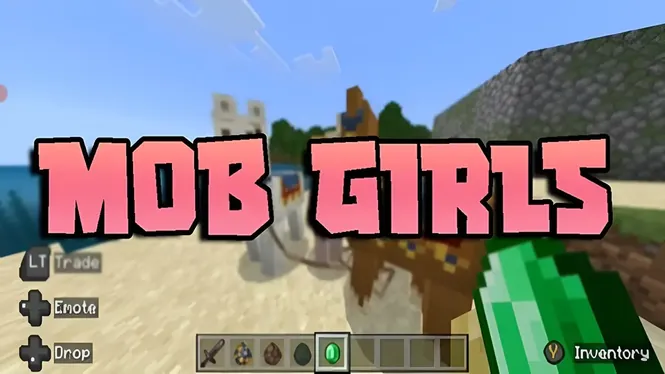
Mob Girls Security Guide | Safe Usage, Content Quality & User Tips
Learn about Mob Girls security, safe usage practices, content quality, compatibility checks, and important tips for a better customization experience.
Read Now
Blog
How to use Mob Girls on a Minecraft Realm: apply the packs, upload your world, invite friends, and fix the issues players hit in shared worlds.
By AntiGM
A Realm turns a personal world into a place your friends can visit any time, and Mob Girls fits that format naturally: the characters live in the world itself, so everyone who joins meets the same cast in the same villages.
The add-on lists Realms as supported, and setup is mostly a matter of order: prepare the world locally with both packs enabled, upload it, and let joining players pull the resource pack down automatically when they connect.
This guide covers that flow, plus the small differences between playing on a Realm and playing solo, and the fixes for the two or three issues that shared worlds produce.
Build and test locally first. Create or open the world on your own device, enable the resource and behaviour packs, and walk through a village to confirm the characters appear and move correctly. Uploading a tested world saves you from debugging on the Realm, where restarts are slower.
Decide your cast and settings before the upload too. Changing packs on a live Realm means replacing the world again, so it pays to settle questions like which add-ons are in, and whether the world is survival or creative, while it is still on your phone or PC.
From the Realms menu, choose the world slot and replace or upload the world you prepared. The packs travel with the world file, including the behaviour settings, so the Realm copy behaves like your local copy from the first join.
Give the upload time to finish before inviting anyone. A half-applied world can show default mobs to the first joiners, who then cache that first impression even after the packs settle. One quiet test join by the owner is worth more than a group launch.
Friends do not need to install anything. When they join, Minecraft offers the resource pack download for the world, and once accepted, the characters render on their device exactly as they do on yours, whether they play on Android, iOS, or Windows.
If a friend declines the resource download, they will see default mobs while everyone else sees characters. The fix is simple: leave, rejoin, and accept the pack download this time.
Shared worlds are where the cast earns its place. Villages become meeting points, friends adopt favourite characters, and group projects, markets, festivals, harbours, gain a population. The scene ideas in the Mob Girls roleplay guide are written for exactly this kind of group world.
Keep a small welcome area near spawn with signs explaining the world: where the town is, what is being built, and any house rules. Realms outlive single sessions, and a world that explains itself keeps casual visitors engaged.
Version mismatch is the big one. If a player updates Minecraft while the Realm world was tuned for an older build, or the reverse, packs can misbehave until versions line up again. Ask everyone to check their game version before a group session.
The other regular is pack priority after a world edit. If you download the Realm world, add another add-on locally, and re-upload, check the pack lists again before going live; edits can reorder them. Our packs explained guide covers what the order means.
Realms wins when your group plays at different times or from different places, because the world is always online and nobody has to host. LAN wins for same-household sessions: it is free, instant, and perfect for an evening on one network.
Many groups use both: a long-running Realm for the main world, and quick LAN worlds for testing characters and builds before they earn a place in the shared world.
No. When a player joins a Realm world that uses the add-on, Minecraft offers them the resource pack as part of joining. As long as they accept the download, they see the characters without installing anything themselves.
Yes. Download or open the world locally, enable both packs in the world settings, test it, and upload it back to the Realm slot. Players will get the resource pack the next time they join.
The add-on supports Android, iOS, and Windows Bedrock, and Realms players on those platforms see the characters once the pack downloads. Keeping everyone on a similar Minecraft version avoids most shared-world issues.
They most likely declined or missed the resource pack download when joining, or their game version does not match the world. Have them leave, update if needed, rejoin, and accept the pack download.
Realms is the easiest way to share the cast: prepare the world once, upload it, and every friend who joins meets the same characters in the same streets. Test locally, upload patiently, and the shared world mostly runs itself.
For groups that play together often, a character-populated Realm quickly stops feeling like a server and starts feeling like a place, which is exactly what a persistent world should be.
Download Mob Girls
Learn about Mob Girls security, safe usage practices, content quality, compatibility checks, and important tips for a better customization experience.
Read Now
Use Mob Girls characters for Minecraft Bedrock roleplay: set up a story world, give characters roles, build scenes, and play out stories solo or with friends.
Read Now
How Mob Girls animations work in Minecraft Bedrock: idle movement, walking cycles, and expressive motion, plus settings that keep animation smooth on mobile.
Read Now